
How to upgrade your computer with an SSD
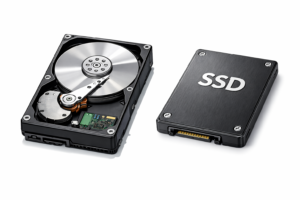
Solid-state drives, or SSDs, now power the majority of laptops and desktops, leaving the once-ubiquitous hard disk drives in the past. If your computer is still running on an HDD, upgrading to an SSD could unlock a whole new level of speed and efficiency.
Swapping in an SSD can breathe new life into an aging computer, delivering a dramatic boost in speed and responsiveness. But before you dive in, it’s wise to consider a few practical factors. Let’s explore what makes SSDs stand out and what you should keep in mind before upgrading.
What is an SSD?
An SSD is a modern data storage device found in computers and many gadgets. Instead of relying on spinning disks and moving parts like old-school hard drives, SSDs use advanced NAND flash memory to keep your data safe. Think of it as a supercharged version of the memory in USB drives and memory cards, built for speed and dependability.
Compared to HDDs, SSDs are more shock resistant (due to their lack of moving parts) and are less likely to be affected by magnetic fields. They also offer faster data access times, quicker boot-up and application load times, and better overall responsiveness.
Why upgrade to an SSD?
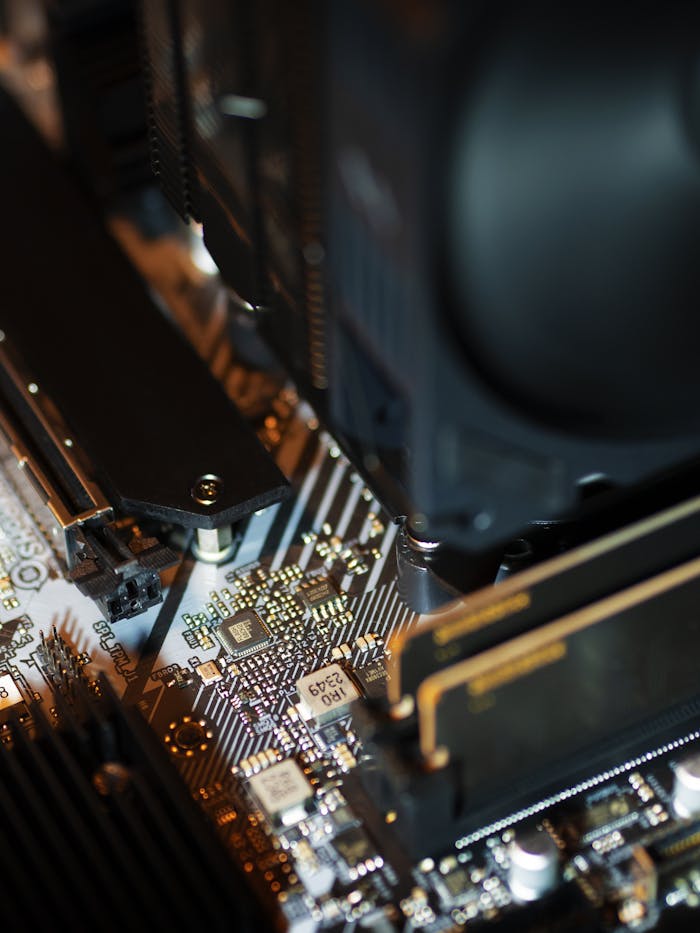
Thanks to their lightning-fast speed and impressive efficiency, SSDs have quickly become the go-to upgrade for everything from personal laptops to massive data centers. When every second counts, like in gaming, creative projects, or moving huge files, SSDs shine with unmatched reliability. While they may not always offer as much storage as similarly priced HDDs, the dramatic boost in performance often makes that a small price to pay.
For many tasks, SSDs can deliver speeds up to ten times faster than traditional hard drives. Swapping out your old drive for an SSD can breathe new life into your aging computer, transforming its performance almost overnight.
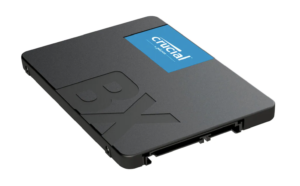
SSDs, with their quiet, motionless interiors, glide along almost silently and barely sip power, leaving old, rattling hard drives far behind. Their blazing-fast read and write speeds make your computer spring to life with every click.
You’ll spend less time watching those endless loading icons and more time actually accomplishing things. If your computer loves to taunt you with the infamous spinning wheel, an SSD might be your passport to a frustration-free experience. With modern operating systems constantly shuffling temporary files in the background, a fast SSD keeps your workflow gliding along effortlessly.
If your laptop or desktop relies on a single drive, swap out that sluggish HDD or cramped SSD for a spacious 1TB SSD for under $40. For data wranglers, upgrading the drive that fuels your operating system and apps brings a speed boost you can actually feel. Store your working files on extra internal or external drives, and you’ll be set to conquer mountains of photos, videos, or sprawling databases. Just remember to create a backup plan to protect your valuable data, whether you prefer local drives, network storage, or the cloud.
Is there ever a good reason to skip upgrading to an SSD?
If SSDs outshine hard drives in so many ways, why hasn’t the world switched over completely? The answer comes down to two things: cost and capacity. While SSDs deliver speed, they also come with a higher price tag. For example, a 1TB SSD or HDD both hover around $30 to $50, but you can often snag an HDD for a bit less, sometimes as low as $25.
That price gap might seem small at first, but it widens quickly as you look at bigger drives. Take an 8TB HDD, which costs between $120 and $180, while an 8TB SSD starts at about $350. So, swapping your computer’s 1TB hard drive for an SSD can be a smart upgrade, but replacing larger drives—like those in external storage—might not make sense unless you really need the extra speed.
But can your computer even handle an SSD? That depends on how old it is and how it was built. Let’s dive into that next.
How do you upgrade to an SSD?
Is your computer still running on a standard SATA hard drive? If yes, imagine the speed boost you could get by swapping it out for a sleek SSD.
SSDs work seamlessly with both Macs and PCs. Today, every Mac laptop features an SSD, and so do iMacs and Mac Pros. Back in 2010, Apple began its shift toward SSDs for most devices, though some desktops kept offering a mix of SSD and HDD storage until 2020, a combination Apple dubbed the Fusion Drive.
Since November 2021, Apple has stopped offering Macs with Fusion Drives. If your Mac is from before 2010 or your desktop predates 2022, you might still be running on an HDD.
Determine your disk type in a Mac
To determine what kind of drive your Mac uses, click on the Apple menu and select About This Mac.
Steer clear of the Storage tab in the top menu. There, you’ll see your drive labeled as “Macintosh HD,” which can be misleading since most Macs actually use SSDs, not traditional hard drives. Although some details are available here, we recommend a clearer approach.
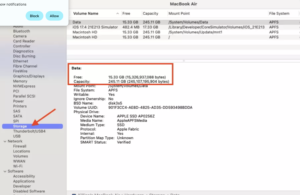
Instead, head to the Overview screen and click System Report. As a bonus, you’ll discover your processor type and macOS version, handy details for later steps.
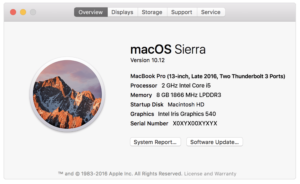
After navigating to the appropriate location, select the Storage tab and then choose the desired volume name. The Medium Type line will indicate the specific type of drive present.
Identifying the disk type on a Windows PC
To identify the disk type on a Windows PC, begin by opening the Task Manager:
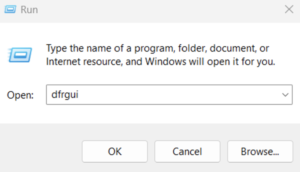
- Right-click the Start button and select Run. In the Run dialog box, enter ‘dfrgui’ and select OK.
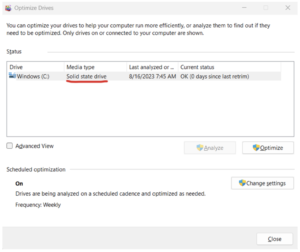
- On the subsequent screen, the drive type is displayed under the Media Type column.
Upgrading to a higher-performance SSD
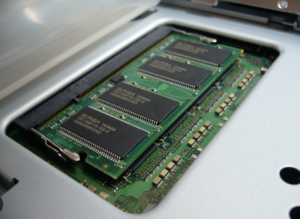
Computers equipped with an SSD can often be upgraded to a larger or faster SSD model. In addition to SATA-based hard drive replacements, certain newer PCs support upgrades to M.2 SSDs, which resemble RAM modules rather than traditional hard drives.
Apple laptops manufactured before 2016 that originally included SSDs can often be upgraded to higher-capacity models. However, these devices require Mac-specific SSDs, which are available from vendors such as Other World Computing and Transcend. In contrast, Apple laptops produced after 2016 have SSDs soldered to the motherboard, making upgrades impractical.
SSD installation guide
For those with experience in computer hardware, upgrading a system with a solid-state drive (SSD) is a routine do-it-yourself project. Many companies offer straightforward plug-and-play SSD replacements. Major online retailers, including Amazon and NewEgg, provide a wide selection. Leading SSD manufacturers include Samsung, SanDisk, Crucial, and Toshiba.
For individuals without expertise in computer hardware, learning to install an SSD from the beginning may not be efficient. SSD upgrades are a common aftermarketservice, andt most independent computer repair specialistscan perform the installation for a fee. Some providers may also include data transfer services. Recommendations from acquaintances or the use of professional service platforms such as Angi can assist in locating qualified technicians.
Individuals interested in performing the installation independently can access numerous instructional videos on platforms such as YouTube. These resources include guides tailored to desktop PCs, laptops, and Mac systems.
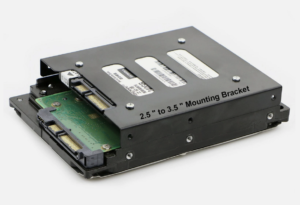
SSDs often step in for 2.5 inch hard drives, the kind tucked inside most laptops and compact desktops. If your desktop relies on a larger 3.5 inch drive, you might need a handy adapter to make the swap seamless.
How to migrate to an SSD
Start your SSD upgrade by picking out your new drive. Next comes the exciting part: transferring your data. For this, you will need two key tools: reliable cloning software and an external drive case, sled, or enclosure. These handy devices let you hook up your SSD to your computer using a USB port or another data connection.
Cloning software works its magic by making a perfect copy of everything on your internal hard drive. After the transfer is complete, simply swap in your new SSD. I always recommend cloning over manual copying, since a properly cloned SSD will boot up your computer just like the original. If you only copy files, you might miss crucial data needed for your system to start.
How to clone a hard drive to an SSD
When you purchase a new SSD or hard drive, it typically arrives without an operating system. In most cases, cloning your current drive addresses this issue. However, cloning may not be possible if your old hard drive has failed and you have installed a new SSD. In such cases, a clean install is required to set up your system. Each operating system provider offers specific instructions for this process. You can find Microsoft’s clean install procedure and Apple’s clean install instructions online.
Remember, SSDs generally cost more per gigabyte than traditional hard drives, so your new SSD may be smaller than your previous drive. Ensure all important data will fit, and consider removing unnecessary files before starting. Leave extra space for future needs to maintain optimal performance. After successfully cloning your drive and installing the SSD, consider how to use the old drive. If it is still functional, you can repurpose the external drive chassis used during migration.
The old drive can serve as a standalone external drive or be added to a disk array, such as a network attached storage (NAS) device. We strongly recommend using it for local backups, in addition to cloud backup solutions like Backblaze. Alternatively, use it for extra storage, such as photos or music.
Make sure to back up
SSD upgrades are routine these days, but unexpected hiccups can still bring everything to a halt. If your computer is running smoothly, take the time to create a full backup before upgrading. That way, if anything goes sideways, you can get back on track without missing a beat.